Knowing how to enter check records in QuickBooks Online keeps your bank balance accurate, your expense categories clean, and your monthly reconciliation short. A check entry is not the same as an expense entry, and using the wrong one is the most common reason a bank register refuses to match a statement. This guide covers the current QuickBooks Online interface, which now uses a + Create button rather than the older + New button that most tutorials still describe.
Nexus United Inc. supports thousands of tax offices and small business clients who use QuickBooks Online for bookkeeping. The mistakes repeat. Someone records a check as an expense and loses the check number. Someone writes a check for a bill they already entered and books the cost twice. This walkthrough shows the right way to record a check and the traps that create cleanup work later.
Check, Expense, or Bill? Choose Before You Click
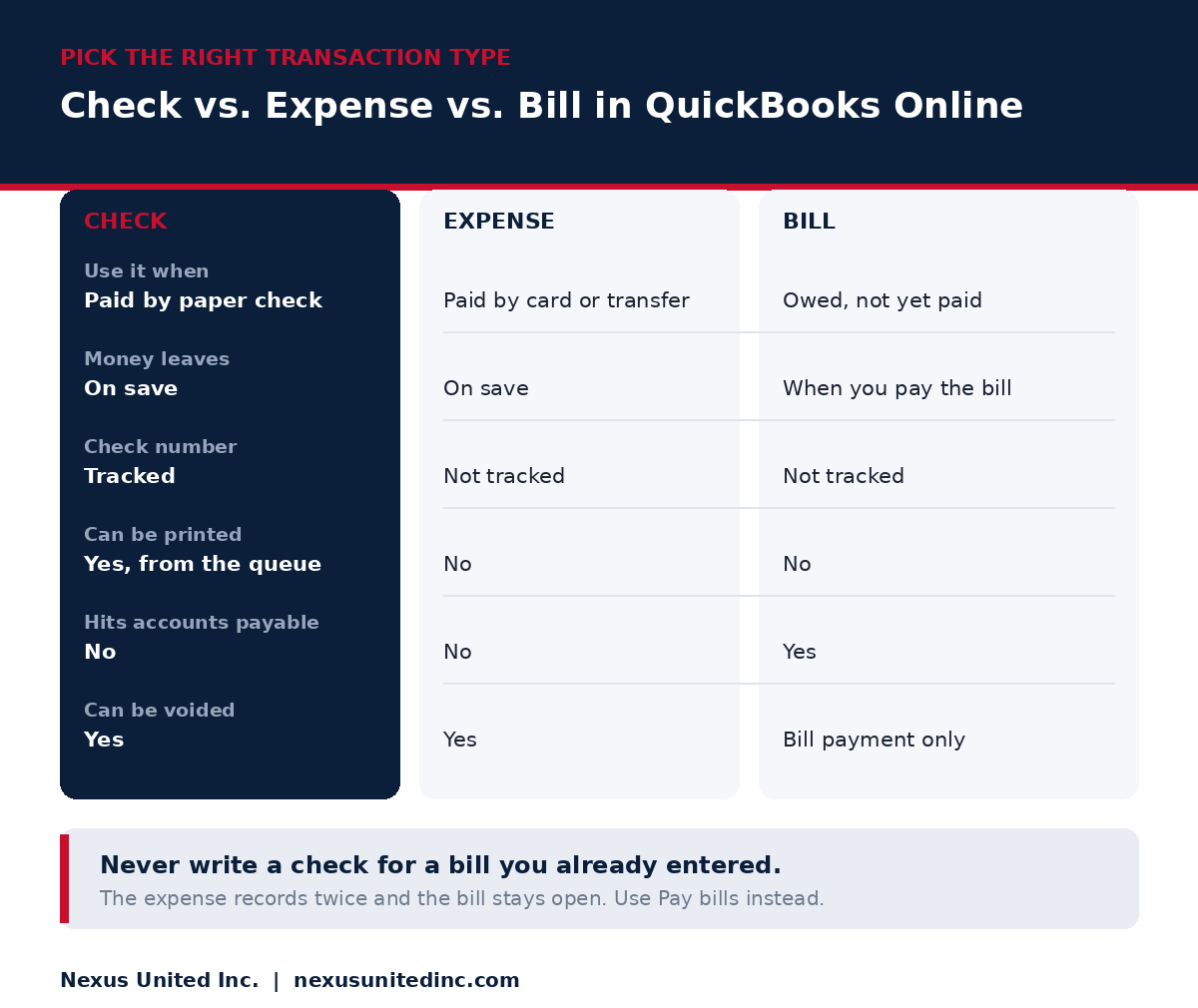
QuickBooks Online offers three ways to record money going out. They are not interchangeable.
| Check | Expense | Bill | |
|---|---|---|---|
| Use it when | You paid by paper check | You paid by card, debit, or transfer | You owe money and have not paid |
| Money leaves the account | On save | On save | When you pay the bill |
| Check the number tracked | Yes | No | No |
| Can be printed | Yes, from the print queue | No | No |
| Posts to accounts payable | No | No | Yes |
| Can be voided | Yes | Yes | Bill payment only |
The rule to remember: if you have already entered a bill, do not write a check against it. Use the bill payment workflow instead. Writing a check records the expense a second time and leaves the original bill sitting open.
Before You Start
Three things should be in place:
- A connected or manually added bank account. Connecting the account lets QuickBooks pull transactions in for matching, which is what makes reconciliation fast.
- A working chart of accounts. Go to All apps, then Accounting, then Chart of accounts. Confirm the expense accounts you actually use exist and are named clearly.
- A decision about the check number. If you handwrote the check, you need the number in front of you. If QuickBooks will print it, you leave the number blank.
How to Enter Check Records in QuickBooks Online
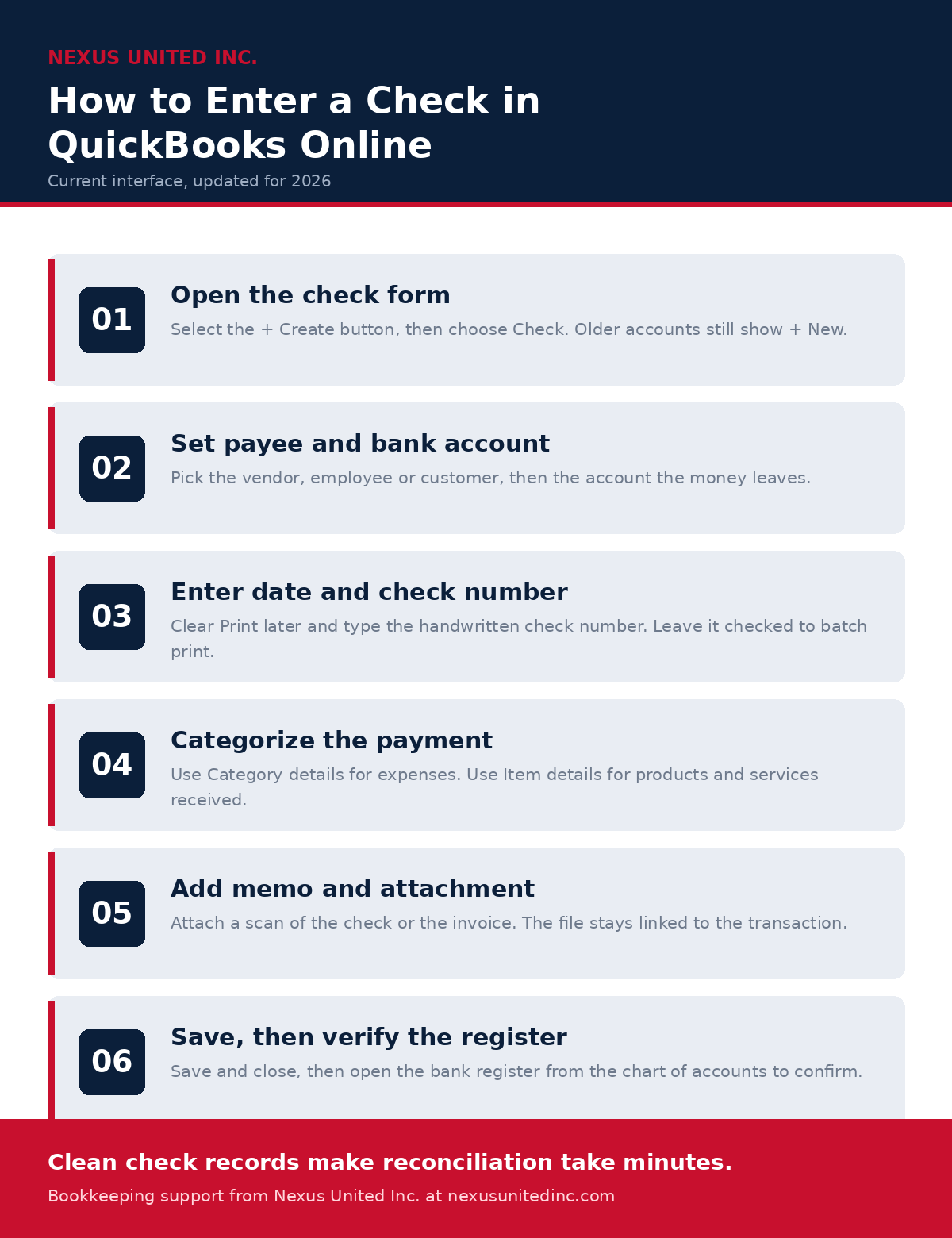
Step 1: Open the check form
Select + Create, then select Check.
If your account still displays the older navigation, the button reads + New and Check appears under the Vendors column. Intuit is rolling the new interface out in stages, so both are live. The form itself is the same.
Step 2: Select the payee and the bank account
From the Payee dropdown, choose the vendor, employee, or customer you paid. If they do not exist yet, select Add new and pick the correct name type. Getting the type right matters because vendor payments feed 1099 reporting later.
From the Bank account dropdown, choose the account the funds come from. This is the single most consequential field on the form. Selecting the wrong account throws off two balances at once.
Step 3: Enter the date and check number
Payment date should match the date written on the check, not the date you are typing.
Check no. behaves differently depending on your intent:
- Recording a check you already wrote by hand: clear the Print later checkbox and type the check number exactly as written.
- Printing the check from QuickBooks in a batch: leave Print later checked. QuickBooks assigns the number at print time.
- Printing this one check now: clear Print later and select Print check.
Mailing address appears on printed checks. It populates from the payee record when one exists.
Step 4: Categorize the payment
- The current form splits into two sections, and knowing which one to use prevents most reporting errors.
- Category details are for expenses that are not tied to a specific product or service. A utility bill, a software subscription, an insurance premium. Select the expense account, add a description, and enter the amount.
- Item details are for products or services you received, tracked as products and services in QuickBooks. Inventory purchases belong here.
- A single expense cannot be assigned to both a category and an item. Pick one.
- If your company uses class or location tracking, apply it here. Departments, locations, and funds all become reportable once tagged consistently.
Step 5: Add a memo and an attachment
- Enter a Memo explaining what the payment covers or who approved it. Six months later, this is the only thing standing between you and a phone call to the vendor.
- Use the attachment area to upload a scan of the check, the invoice, or the signed approval. Files stay attached to the transaction and appear during audits and reviews. This is the cheapest audit insurance in the product.
Step 6: Save and verify
Select Save and close to finish, or Save and new to enter the next check.
Then confirm the entry landed correctly:
- Go to All apps, then Accounting, then Chart of accounts.
- Find the bank account and select View register.
- Locate the check and check the payee, number, date, and amount.
QuickBooks records the check as an expense and reduces the selected bank account by the total.
Entering a Check Directly in the Bank Register
For quick catch-up work, you can skip the full form. Open the bank register, select the Add check dropdown, choose Check, and fill in the fields inline. This is faster for entering a backlog of handwritten checks. It gives you fewer fields, so use the full form whenever you need item details or attachments.
How to Void a Check in QuickBooks Online
Voiding keeps the transaction and the check number in your records and sets the amount to zero. Deleting removes it entirely and leaves a gap in your check sequence.
Void when the check was never cashed, was written in error, or was lost. Delete only when the transaction should never have existed.
To void:
- Go to All apps, then Expenses & Bills, then Expense transactions.
- Find the check.
- In the Action column, select the dropdown, then Void.
- Confirm.
Two cautions. Voiding a check that was already reconciled will throw your reconciled balance out of balance. Voiding a check dated in a closed period changes a period you have already reported on. In both cases, talk to your accountant before you act. A common alternative is to leave the original check alone and record an offsetting deposit in the current period.
Printing Checks from QuickBooks Online
Enable check printing first. Go to Settings, then Account and settings, then the Expenses tab, and turn on the print checks option. To print a batch, select + Create, then Print checks. Choose the bank account, enter the starting check number from your check stock, select the checks, then Preview and print.
Practical notes:
- Print a test page on plain paper before loading check stock.
- Set your printer scale to 100 percent. Fit to page destroys alignment.
- Voucher checks print one per page with stubs. Standard checks print three per page.
Best Practices That Keep Your Books Clean
Reconcile every month. Do it within a week of the statement date, while you can still remember what a transaction was. Reconciliation is where check entry errors surface, and the older the error, the harder the fix.
Attach the supporting document at entry time. Not later. Later never comes.
Review the chart of accounts quarterly. Merge duplicates. Lock parent accounts so transactions post to subaccounts instead. Consistent categorization is what makes your profit and loss statement useful.
Use class and location tracking if you run multiple sites or departments. Available on Plus and Advanced. It is the difference between knowing your business is profitable and knowing which part of it is.
Do not delete when you can void. Gaps in check numbers create questions no one can answer a year later.
Common Errors When Entering Check Records
| Error | Consequence | Fix |
|---|---|---|
| Recorded a check as an Expense | The check number is lost, and reconciliation breaks | Delete and re-enter as a check |
| Wrong bank account selected | Two account balances are wrong | Edit the transaction and change the account |
| Wrote a check against an entered bill | Expense counted twice, bill stays open | Delete the check, use Pay bills |
| Left the check number blank | Cannot trace the payment | Edit and add the number |
| Wrong category | Profit and loss is misstated | Edit the category, rerun the report |
| Deleted instead of voided | No audit trail, gap in check sequence | Re-enter from the audit log, then void |
Frequently Asked Questions
Can I edit a check after saving it?
Yes. Open the bank register or Expense transactions, select the check, make your changes, and save. If the check has already been reconciled, editing it will affect your reconciliation. Check with your bookkeeper first.
How do I void a check in QuickBooks Online?
Go to All apps, then Expenses & Bills, then Expense transactions. Find the check, open the Action dropdown, and select Void. The record stays, and the amount becomes zero.
Can I import checks in bulk?
Not directly. QuickBooks Online imports bank transactions from a CSV, QBO, QFX, or OFX file, which brings the payment in for you to categorize. Importing formatted check entries in bulk requires a third-party import app from the QuickBooks App Store. Anyone claiming QuickBooks has a native bulk check importer is describing bank transaction import.
What is the difference between a check and an expense in QuickBooks Online?
A check records a payment made by paper check, tracks the check number, and can be added to the print queue. An expense records a payment already made by card, debit, or transfer, with no check number and no printing.
Do I need to connect my bank account?
No, but you should. Connected accounts let QuickBooks match your entered check against the cleared bank transaction, which is what makes reconciliation take minutes instead of hours.
Which QuickBooks Online plans support check entry?
Check entry is available across the QuickBooks Online lineup, including Simple Start, Essentials, Plus, and Advanced. Class and location tracking require Plus or Advanced.
Get Your Books Handled
Learning how to enter check records in QuickBooks Online takes an afternoon. Keeping twelve months of clean, reconciled, audit-ready books takes a system. Nexus United Inc. provides bookkeeping and accounting support to tax professionals and small business owners, with QuickBooks included in the network’s software access. If your check register has drifted from your bank statement, we can find out why.